

In this article
A shopper finds a jacket they like, picks their size, and heads to checkout. Then the store says there’s no delivery option, even though their address is in an area you serve. One shipping rule can stop a sale after the product page has done its job. Shopify website development connects the storefront, inventory, shipping, and checkout so customers can place orders and your team can fulfill them. If you’re bringing in a team to build your store, see what we cover in our Shopify development services.
Think through what that shopper needed before reaching checkout. They had to find the jacket, check which sizes and colors were in stock, and decide whether it would arrive in time. Those decisions should shape your Shopify website design, from where you put the size guide to when you show delivery information. Behind the scenes, your Shopify store setup needs to track stock for each size and color, apply the correct shipping rates, and tell your team exactly what to pack.
If you’re figuring out how to build a Shopify store, write down one order you expect to receive on launch day. Include what the customer buys, where it needs to ship, and what your team does once the payment goes through. Use that order to decide what your theme needs to handle, where an app might help, and what to test before going live. Then place the order on a phone and follow it through to fulfillment. You’ll see where a shopper might get stuck and where your team might need to step in.
What Is Shopify Website Development?
Shopify website development is the work of building a Shopify store around the products you sell and the way your business handles orders. It covers the pages shoppers use to browse and buy, the store settings that control payments and delivery, and the tools your team uses to manage products and inventory. The scope can range from setting up an existing theme for a small catalog to rebuilding a store that already serves customers and connects to other business systems.
What Goes Into the Build?
Say you sell 15 products that are ready to ship. Your Shopify store setup might include a homepage, a reusable product page, a few collections, and shipping rules for orders sent from one location. If you’re moving an established store to Shopify, the work may also include importing product records, redirecting old URLs, and checking stock levels before switching over. Custom Shopify development can come into play when you need to connect to a specialized system, such as the inventory software your warehouse already uses.
How Do You Know the Store Is Ready?
Define what you or your team should be able to do when the build is finished. If the project includes new collections, add a product and check that shoppers can find it in the right place. If it includes an inventory connection, place a test order and confirm the stock count changes in the system your team uses. At handover, make sure whoever manages the store knows where to update prices, add products, and review orders. Those checks give you a practical way to judge the build before opening it to customers.
How Shopify Website Development Works
When you publish a new backpack to your Shopify store, it can use the same page layout as the rest of the range. The product record supplies the backpack’s details, the theme controls how shoppers see them, and checkout uses your store settings to turn a purchase into an order. Understanding how these parts fit together helps you decide where to make a change when a product looks wrong, goes missing, or costs more to ship than expected.
Product Records Hold the Details
A backpack that comes in black and olive can have one product record with a separate variant for each color. You can track stock for each variant, so the store can show when the olive version sells out while the black one is still available. During Shopify store setup, check which products are active and published to the Online Store sales channel. If a backpack is missing from the storefront, start with those settings in its product record. Shopify’s guide to variants and product availability.
The Theme Controls How Pages Look
One decision in Shopify website design is which products should share a layout. A single product template can display each backpack’s own title, photos, and description. If you move the photo gallery in that shared template, the change applies to every product page that uses it. If you’re replacing a photo for just one backpack, make the change in that product’s record. The distinction matters when you’re reviewing a change that could affect dozens of pages. Shopify’s guide to templates.
Checkout Turns a Cart Into an Order
When a shopper adds the olive backpack to their cart and enters a delivery address, checkout shows the shipping options that match the cart and your settings. After they place the order, your team can open it in Shopify admin to see which variant was purchased, check the payment status, and prepare it for fulfillment. During testing, check both sides of the purchase. The shopper should see the expected delivery option, and the order record should give your team the details it needs to pack and ship the right item. Shopify’s shipping rate guidance, checkout guide, and order management guide.
Shopify Website Design vs. Development
Shopify website design determines how shoppers find products, compare options, and decide what to buy. Shopify website development makes those choices work with your catalog, theme, and store settings. If you’re building a furniture store, start the project brief with a task the shopper needs to complete. Finding a desk that fits their space gives the designer a decision to support and the developer a feature to test.
Shopper’s task | Design work | Development work |
|---|---|---|
Find the right desk | Choose collection names shoppers recognize, such as Corner Desks and Standing Desks. | Build the collections and menus, then check that each desk appears in the right place. |
Check whether it fits | Place the width, depth, and height near the product photos so shoppers can check them quickly. | Connect editable measurement fields to the product page so each desk displays its own dimensions. |
Choose a finish on a phone | Make the selected finish clear and show which choices are unavailable. | Configure the variants and test that the selected finish and its price carry through to the cart. |
What to Review Before You Approve the Build
Review the design with real products from your catalog. A mockup with short titles and matching photos can look clean even when a longer title or an awkward image crop makes the page harder to use. Pick a desk with several finishes and a longer name. Check whether you can find the dimensions, identify the finish you’ve selected, and reach the purchase button on a phone.
Then use the same desk to review the working store. Change a measurement in Shopify admin and check that the updated value appears on the product page. Select a finish and confirm the cart shows the right one. If the design calls for a configurator that changes the price when shoppers add drawers, discuss custom Shopify development before approving the layout. Agree on which combinations are allowed, how each choice affects the total, and what the packing team should see on the order.
Essential Features of a Professional Shopify Store
A shopper looking for cookware may need to know whether a pan works on their stove before they care about the brand. That question should shape how you organize the catalog and what you show on the product page. When you scope Shopify website development, start with the decisions customers make before buying and the tasks your team needs to complete after an order arrives.
Navigation and Search That Fit the Catalog
Use menu labels shoppers recognize, such as Frying Pans, Cookware Sets, and Lids. For a larger catalog, give customers a way to narrow the results by details they care about, such as pan diameter or cooktop compatibility. Shopify Search & Discovery can add filters to collection pages and search results on a compatible theme. Test a few searches on a phone using the words your customers would type. Shopify’s filter guidance.
Apply the same thinking to Shopify SEO. Give your main collections descriptive search titles and descriptions. A title like “Induction Cookware” tells someone searching for a compatible pan what they’ll find on the page. Shopify’s collection settings.
Product Pages That Answer Buying Questions
Show what comes in the box and put the details that affect the buying decision near the price. For a cookware set, list the pieces, show them in the photos, and say which cooktops the set works with. For a single pan, tell the shopper whether the lid is included. Put longer care instructions further down the page so shoppers can find them without having to scroll past them to reach the purchase button.
Clear Delivery, Returns, and Support
Give buyers a way to check delivery timing before they pay, find the return window, and contact someone if an order goes wrong. You can manage shipping and return policies in Shopify and link them from your store menus. Test a cart with two products that ship differently as well as a single-item cart. That lets you see the delivery options and charges a customer will encounter in both cases. Shopify’s store policy guide and shipping rate guidance.
Order Management and Analytics
Give the people who run the store a clear way to see which orders are paid, which are ready to ship, and which need attention. Decide who handles refunds and updates stock when a return comes back. Once the store has traffic, use Shopify Analytics to compare visits with cart additions, visits that reach checkout, and visits that end in a purchase. If shoppers frequently leave at checkout, replay that stage with a typical cart and check what they see for delivery charges and payment options. Shopify’s order management guide and conversion reporting guidance.
Step-by-Step Shopify Website Development Process
Start Shopify website development by deciding what customers can buy on launch day and how your team will deliver it. Those decisions tell you which pages to build, what your theme needs to support, and which checkout conditions to test. The same sequence works whether you’re learning how to build a Shopify store yourself or coordinating the work with a developer.
Step 1. Plan Your Store, Catalog, and Navigation
List the products you’ll launch with, the markets you’ll serve, and where orders will ship from. A cookware store might start with individual pans and complete sets. Those groups help you decide which collections belong in the main menu and which products need different information on their pages. Record any launch requirements, such as letting shoppers filter pans by cooktop compatibility. Set up the Shopify account under your business’s control and keep the new storefront private while you build. Shopify’s new store checklist and launch guidance.
Step 2. Choose a Theme and Customize Your Page Templates
Preview themes with your own product photos and copy. Check how each theme handles the collections, filters, and product details you planned. Once you choose one, apply your logo, colors, and typography, then build the homepage and the main collection and product templates. Review the Shopify website design with both a single pan and a cookware set to see whether the layout can present the right details for each. If you’re working on an existing store, duplicate the theme and preview your changes in the copy before publishing. Shopify’s theme editor guide, theme duplication steps, and filter requirements.
Step 3. Set Up Products, Collections, and Inventory
Start Shopify store setup with a small group of products you can check by hand. Add titles, descriptions, and photos, then record prices, item codes, weights, and stock at the appropriate product or variant level. Assign each item to its collections and check that the menu takes shoppers to the right group. If you’re using a CSV, import a small batch first and inspect the images, options, and prices in Shopify before loading the rest. Export your current catalog before using an import to update existing listings. Shopify’s product setup guide, CSV import guidance, and variant documentation.
Step 4. Configure Payments, Shipping, and Store Policies
Choose a payment provider that supports your business location and product category. Start any required verification early so it has time to clear before launch. Set up delivery options for the markets you serve and the locations that fulfill orders. If you offer free shipping above a minimum order value, test carts on both sides of that threshold. Add your shipping and return policies, then check that the terms customers read match what your team can deliver. Shopify Payments availability, shipping rate guidance, and store policy setup.
Step 5. Connect Your Domain, Apps, and Analytics
Connect your branded domain and check that it opens the correct store over HTTPS. If you’re migrating, make redirects part of your Shopify SEO plan. Match important old product and collection URLs to their closest new pages before switching the domain, then open those old addresses after launch to confirm they reach the right destinations. Shopify’s domain guidance and URL redirect instructions.
Connect the apps you need to take and fulfill orders. For an inventory app, establish where stock changes should be made and verify that a change reaches the other system. Give the person reviewing launch performance access to Shopify Analytics so they can check traffic and sales once customers arrive. Shopify’s analytics guide.
Step 6. Test Mobile Shopping, Checkout, and Order Fulfillment
Place a test order on a phone using an email address you control. Shopify’s payment gateway tests require a paid plan. Use the test gateway or a supported payment test mode to run successful and declined transactions and see what happens on both sides of checkout. Shopify’s test order guide and payment test mode guidance.
What to test | What to check |
|---|---|
Product selection and cart | The selected option, quantity, and price carry through to checkout. |
Delivery options | The expected rate appears for the cart and delivery address you entered. |
Declined payment | The shopper can understand the message and retry the payment. |
Order and inventory | The confirmation email arrives, the order shows the right item, and tracked stock updates as expected. |
Step 7. Launch the Store and Hand It Over
Publish the approved theme, confirm your plan and store address, and turn off payment test mode. When the new store is ready, switch access from private to public. Open the domain in a private browser window and follow the path a first-time visitor takes from the homepage to checkout. Shopify’s launch guidance.
At handover, confirm that the owner can access the store, domain, and billing. Have the person who will run the store add a product, review an order, and walk through how they’d handle a return. Record who owns theme updates, app renewals, and fixes after launch. If you’re arranging ongoing support, see our website maintenance services.
Custom Shopify Development vs. Ready-Made Themes
Start with the products that are hardest to present. A cookware seller might need shoppers to compare what comes in each set and which cooktops it works with. Before you scope Shopify website development, check whether a ready-made theme can display those details and whether your team can update them. The answer helps you decide how much of the storefront needs to be built.
Approach | When it fits | What you’ll maintain |
|---|---|---|
Ready-made theme | The existing templates and settings cover how shoppers browse, compare, and buy your products. | Store content, theme settings, and updates from the theme developer. |
Customized ready-made theme | The core layouts work, and a specific requirement calls for a new section or template. | The theme plus a record of the custom code and the pages it affects. |
Fully custom theme | Several page types need layouts or interactions tailored to the way your customers shop. | Custom templates, editable settings, and an agreed plan for code updates and support. |
Test a Ready-Made Theme With Your Catalog
Preview a product page, a collection, and the cart on a phone. Try the edits your team will make regularly, such as changing the featured collection or replacing a banner. Shopify lets you preview and customize a paid Theme Store theme before purchase. You’ll need to buy it before publishing it or editing its code, and the license applies to the store that purchases it. Shopify’s theme preview and licensing guidance and theme code requirements.
Give Custom Theme Work a Specific Job
Tie custom Shopify development to something a shopper or staff member needs to do. If comparing cookware sets matters, ask for a reusable section with editable fields for piece count, materials, and cooktop compatibility. Preview it with two sets that have different specifications, then ask someone on your team to update one of them. If the work extends across several page types, list the templates in the brief and agree on which parts your team should be able to edit. Shopify’s developer guide to sections.
Plan for Theme Updates Before Launch
Theme updates can require you to reapply code changes that are incompatible with the new version. Keep a short record of what was added and which pages depend on it. Review the updated theme as a draft and repeat the tests that matter to your store, such as comparing two sets, selecting a variant, and adding the right item to the cart. For a fully custom theme, agree who will maintain the code and make sure your business has access to the theme files at handover. Shopify’s theme update guide.
Shopify Apps, Integrations, and Custom Features
You can check a reviews app by opening a product page and seeing what shoppers see. Checking a warehouse integration means looking at both systems when an order is ready to pack, ships, or gets canceled. During Shopify website development, write down what each tool needs to do and how you’ll verify it. That gives you a way to judge an app or a custom build before you commit to it.
Choose Apps by the Job They Need to Do
During Shopify store setup, start with a specific task. If you want product reviews, check that the app works with your theme and shows reviews for the correct item on the product page. Before installing it, review which store and customer data it can access and what it can edit. Shopify’s app installation guide and theme app guidance.
Check how the app bills you. A subscription is predictable, while usage charges can rise as you send more messages or process more orders. Estimate the bill at the volume you expect, and record who manages the subscription, especially when the developer bills you outside Shopify. Shopify’s app charges guide and external billing guidance.
Map What Each Integration Sends and Receives
Agree on which system controls stock, how products are matched by SKU, and when an order should be sent for fulfillment. If your warehouse manages inventory, use checks like these to verify the connection before launch.
Event | Where the update goes | What to verify |
|---|---|---|
Order is ready to pack | Shopify → warehouse | The warehouse receives the right order, SKUs, and quantities. |
Stock is corrected | Warehouse → Shopify | The quantity changes for the matching SKU and location. |
Order ships | Warehouse → Shopify | The tracking number appears on the correct order. |
Order is canceled before packing | Shopify → warehouse | The warehouse removes the order from its packing queue. |
Decide who receives an alert when a transfer fails. Ask whoever builds the integration to demonstrate that retrying a failed transfer produces one warehouse order, even if the same update arrives twice. Shopify’s developer guidance on duplicate events.
Scope Custom Features Around a Workflow
Custom Shopify development can fit a process that available apps don’t cover. A personalized gift store might need customer approval of a proof before an order goes to production. Write down who approves it, where the approval is recorded, and what releases the order. Those details give the developer a workflow to build and your team a way to test it.
Check where a proposed checkout feature needs to appear. Shopify reserves checkout UI extensions in the information, shipping, and payment steps for Plus stores. Confirm the plan and placement before including the feature in the quote. Shopify’s checkout extension documentation.
If you need help connecting Shopify to the systems your team already uses, see our ecommerce website development services.
Shopify SEO and Mobile Optimization
A shopper searching for a replacement lid may land directly on a product page. They need to see which pans it fits and be able to buy it from their phone. Build Shopify SEO and mobile testing into Shopify website development so you can check whether search engines can reach the right pages and whether shoppers can use them once they arrive.
Give Each Important Page a Search Purpose
For Shopify SEO, use a collection page for a broad search such as “replacement pan lids” and a product page for a specific item such as a “28 cm glass lid.” Give each page a distinct search title and description. On the product page, include the measurements and compatible models buyers need to check. Link to the lid from the pages for pans it fits, and use image alt text to describe the product shown. Shopify’s keyword guidance and site structure guide.
Check What Google Can Access After Launch
Once the store is public, verify your domain in Google Search Console and submit the /sitemap.xml file Shopify generates. Use URL Inspection on an important collection and product page to check whether Google can access the live pages and see their indexing status. If a page you want in search is blocked, check its publishing status and indexing settings before requesting a new crawl. Shopify’s sitemap instructions and Google’s URL Inspection guide.
If your theme or an app adds product structured data, run the live product page through Google’s Rich Results Test. Check that the price and availability Google detects match what shoppers see on the page. Google’s product structured data guidance.
Test the Buying Path on a Real Phone
Review your Shopify website design by opening a collection from a direct link. Apply a filter, open a product, and return to the results. Then check whether you can select an option, find the delivery details, and add the product to your cart. Pay attention to menus and pop-ups. A shopper should be able to close them and pick up where they left off.
Measure Speed on the Pages Shoppers Use
Run a mobile PageSpeed Insights check on the homepage, a collection page, and a product page. Once you have enough visitor data, use Shopify’s web performance reports to see how those pages perform for real mobile shoppers. Google evaluates its Core Web Vitals thresholds at the 75th percentile of page visits. PageSpeed Insights documentation, Shopify’s performance reports, and Core Web Vitals thresholds.
Metric | Good target | Where to look if it falls short |
|---|---|---|
Largest Contentful Paint (LCP) | 2.5 seconds or less | Check whether the main product image or banner is slow to load. |
Interaction to Next Paint (INP) | 200 milliseconds or less | Test controls such as filters and variant selectors for slow responses. |
Cumulative Layout Shift (CLS) | 0.1 or less | Look for images, banners, or app blocks that push content around as they load. |
Start with slow pages that already get mobile traffic. That gives you a specific page and shopping task to retest after a theme or app change. Shopify’s performance optimization guidance.
How Long Does Shopify Website Development Take?
Allow about one to two weeks for a small Shopify store when your product data, photos, and copy are ready. A build with custom layouts, a migration, or a new integration can take several weeks. Plan Shopify website development in calendar time. The work includes waiting for feedback, getting approvals, and checking that customers can place orders before the store opens.
Estimated Timelines by Store Scope
Use these planning estimates from the point when you’ve agreed on what the store needs at launch and have the materials to start.
Store scope | Estimated calendar time | What the estimate covers |
|---|---|---|
Small theme-based store | 1–2 weeks | A prepared catalog, standard theme layouts, payment and shipping settings, and one review round. |
Store with custom pages or apps | 2–4 weeks | Several tailored layouts or sections, app configuration, and time to review and test them. |
Larger migration or custom integration | 4–8 weeks or longer | Data mapping, a trial import or sync, checks on transferred records, and a scheduled switch to the new store. |
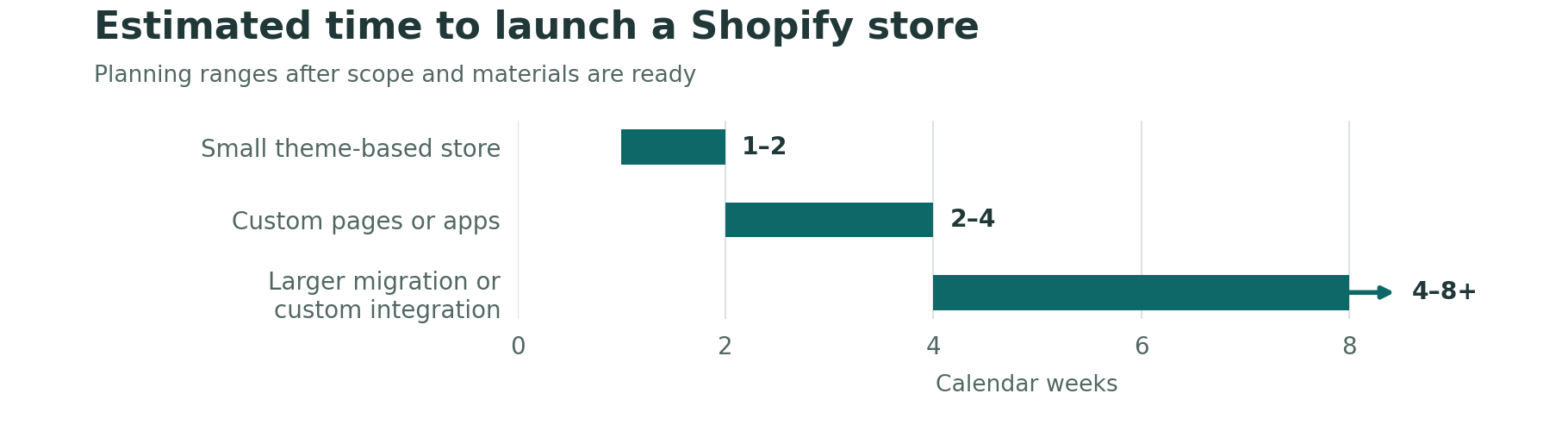
Figure 1. Estimated calendar timelines by Shopify store scope.
What Can Change the Launch Date?
Start payment-provider verification and confirm who can access your domain early in the build. Shopify says changes for a third-party domain usually take effect within two hours but can take up to two days. If you’re moving a live store, set aside time to reconcile orders and stock changes that happen between the first export and the switch. Shopify Payments requirements, domain connection guidance, and migration checklist.
Set Milestones You Can Verify
If you’re working out how to build a Shopify store by a set date, put review and test days on the calendar before announcing the launch. For a Shopify store setup with 20 prepared products, an eight-working-day plan could allow two days for the first theme preview, three for catalog and store configuration, two for review and test orders, and one for final fixes and publishing.
Give each milestone an owner and an approval date. For the catalog review, check that the agreed products, variants, prices, and stock are in place. For the launch review, confirm that payment is live and the team can fulfill an order. If either check needs another round of work, update the launch date before scheduling the announcement.
Common Shopify Development Mistakes and How to Avoid Them
A product page can look ready even if a catalog import dropped one of its sizes. When you’re deciding how to build a Shopify store, give someone responsibility for checking the records and settings behind the pages. During Shopify website development, review those details against the way you plan to sell, take payments, and fulfill orders.
Overwriting Product Variants During an Import
If you update SKUs or shipping weights with a product CSV, keep the option names and values those fields depend on. Missing option data can cause Shopify to replace existing variants with a default variant. If you change an option value intentionally, Shopify can assign a new variant ID. Check the affected product and any app that relies on its variant IDs before applying the change across the catalog. Shopify’s CSV field requirements.
Leaving Payment Capture Out of the Fulfillment Plan
With manual capture, a card order can show as authorized while payment still needs to be captured. Assign someone to review those orders and capture payment within the provider’s authorization period. Then test the order status or event that tells your team to start packing. If you use a warehouse integration, verify that it releases the order at the stage you agreed on. Shopify’s payment capture guidance.
Sending Old Product Links to the Homepage
Someone opening an old link to a specific pan expects to find that pan. During a migration, prioritize the URLs that bring in search traffic or have links from other sites. As part of your Shopify SEO review, check that each old URL with a suitable replacement goes directly to its new destination in one redirect. Open the links after the switch and check where they land. Shopify’s URL redirects and Google’s site migration guidance.
Counting One Sale Twice
A marketing app and a custom pixel can both send a purchase event to the same analytics tool. List which tools send purchase data and verify how the destination handles duplicates. In Google Analytics, use the same transaction ID for repeated events from one order and a unique ID for each different order. Check that the recorded transaction ID and purchase value match the order in Shopify before relying on the reports. Shopify’s pixel overview and Google Analytics transaction ID guidance.
How to Choose a Shopify Website Developer
Give each developer the same brief. Include your catalog size, the pages you need, and the hardest task the store has to handle. Ask each candidate to explain how they’d build and test that part of the project. A Shopify website development quote is easier to assess when you can see what the developer will deliver and how you’ll approve it.
Ask to See Work With Similar Requirements
If your store needs a guided product selector, ask the developer to walk you through a similar build. Look at how a shopper makes a choice, how the merchant edits the options, and what appears on the order. For custom Shopify development, ask which parts the developer built and how they supported them after launch. If you’re still building a shortlist, you can search the Shopify Partner Directory by services such as store builds, migrations, or integrations. Shopify’s Partner Directory guidance.
Compare What Each Quote Includes
Ask for written answers to the same questions so you can compare the work and support each developer is offering.
Question to ask | What to look for in the answer |
|---|---|
Which pages, products, and connections are included? | A list of templates, product counts, integrations, and who supplies the copy and images. |
What will we review before launch? | A preview, agreed tests using your catalog, and a clear point for approval. |
How do you handle revisions or new requests? | The included review rounds and how extra work is priced and approved. |
Who handles issues after launch? | A support period, a contact person, and which fixes are included. |
Agree on Store Access and Ownership Early
For a Shopify Partner working on an existing store, review the collaborator request and match its permissions to the work in the quote. If the Partner builds a new store for you, agree on when ownership transfers and who takes over billing. Set a date to review developer access when the agreed support period ends. Shopify’s collaborator access guide and client store guidance.
If you’d like a quote based on your catalog and launch requirements, share your brief with our Shopify development team.
Shopify Website Development Cost at a Glance
Shopify website development cost depends on how much work your store needs before launch. Our Starter Plan starts at $250 USD for a defined build that includes branded theme setup, an agreed number of products and collections, payment and shipping configuration, and order testing. Price any custom layouts, data migration, or integrations separately so you can see what each addition costs. ZH Consultancy’s published Starter Plan.
Estimate Your First-Year Budget
Shopify lists Basic at $29 USD per month on annual billing, which comes to $348 USD paid upfront. At the $250 USD starting build fee, those two items total $598 USD. Add your domain, any paid theme or apps, and any ongoing support you’ll need. Estimate payment processing and shipping separately based on your expected sales, and confirm the rates Shopify shows for your store. Shopify’s published plan prices and billing guidance.
For a breakdown by store type and a more detailed first-year budget, see our Shopify pricing guide.
The Takeaway
If you’re deciding how to build a Shopify store, put your launch requirements on one page. List what you’ll sell, what shoppers need to do before they buy, and what your team needs to see when an order comes in. Use that brief to scope Shopify website development and agree on what a finished store should do.
Before opening the store, ask someone seeing it for the first time to buy the jacket from the opening of this guide in their size and check whether you deliver to their address. Give them the task and watch where they pause before offering help. Then have the person who handles fulfillment review the test order. Fix the steps that prevent a purchase or leave the order unclear. Use feedback from real shoppers to decide which improvements to make next.
Before you choose a plan or approve a build, make a list of the store assets you already own and the ways you want to sell. An existing domain, a catalog you need to move, or a retail location can each change the scope of Shopify website development.
Faq
Frequently Asked Questions
Yes. If you’re learning how to build a Shopify store, you can use a ready-made theme and its editor to arrange pages, add content, and apply your branding. If a feature falls outside the theme’s settings, check whether an app can handle it or whether it needs code. Shopify’s theme customization guide.
Yes. You can add products and collections, preview a theme, and explore store settings during the trial. When you’re ready to sell, choose a paid plan and configure your payment provider. Check app pricing before installing anything, since app charges can apply during the trial. Shopify’s trial guidance.
Yes. Connect your domain to Shopify and continue renewing it with your current provider. Make sure the person handling launch has access to update the required DNS records. Once the domain connects, open it directly and check that it takes you to the right storefront. Shopify’s third-party domain instructions.
You can import products and customers using CSV files. For past orders, use a migration app or an API-based transfer. Shopify recommends importing products first, customers second, and historical orders last so the records can be linked. Decide how much order history your team needs for returns and customer support before scoping the transfer. Shopify’s migration guidance.
Yes. Add the new theme as a draft and configure its templates, branding, and app blocks there. Preview it with your current catalog and pay particular attention to pages that rely on custom sections. Once you’ve checked those pages, publish the new theme. You can access the previous one in your theme library if you need to switch back. Shopify’s theme switching guide and theme app guidance.
Yes. Add the language in Shopify and prepare translations with Translate & Adapt or another compatible app. Before promoting the translated store, review product details, navigation, and policies in that language. Follow a purchase through checkout and check the order confirmation email as well. Shopify’s localization guide and language settings.
Yes. Shopify POS can sync in-person orders and inventory with your online store. Set up your retail or pop-up locations in Shopify, then check that a sale updates stock at the right location. Decide which locations will fulfill online orders so the store reflects how you actually ship. Shopify’s point-of-sale guide and inventory location guidance.

Zain Hameed
Business strategy specialist helping a global client base of 800+ businesses build credible plans, financial models and investor-ready presentations.
In this article
Book a Free Consultation
Have a business idea, growth challenge or investor deadline? Book a free consultation and get clear next steps from our team.
Call our team
+923104049517
Email us

Business Topics
Business topics
Continue reading
Related insights

How to Start a Laundromat Business: A Complete U.S. Founder’s Guide
Learn how to start a laundromat business in the USA: market

How to Start a Construction Business in the USA
A homeowner wants to sign a $75,000 remodeling contract on Friday.

How to Start a Plumbing Business in the USA
At 7:15 on Monday morning, a homeowner calls about water coming

How to Start a Car Rental Business in the USA: A Founder’s Practical Guide
A family lands after midnight. They do not care whether your

How to Start a Landscaping Business: Costs, Licenses, Marketing and Profit
Picture two lawns on the same street. One homeowner wants a

How to Start a Cafe Business in the USA: Costs, Licenses, Marketing and Profit
You’re standing inside an empty storefront, and you can already picture